

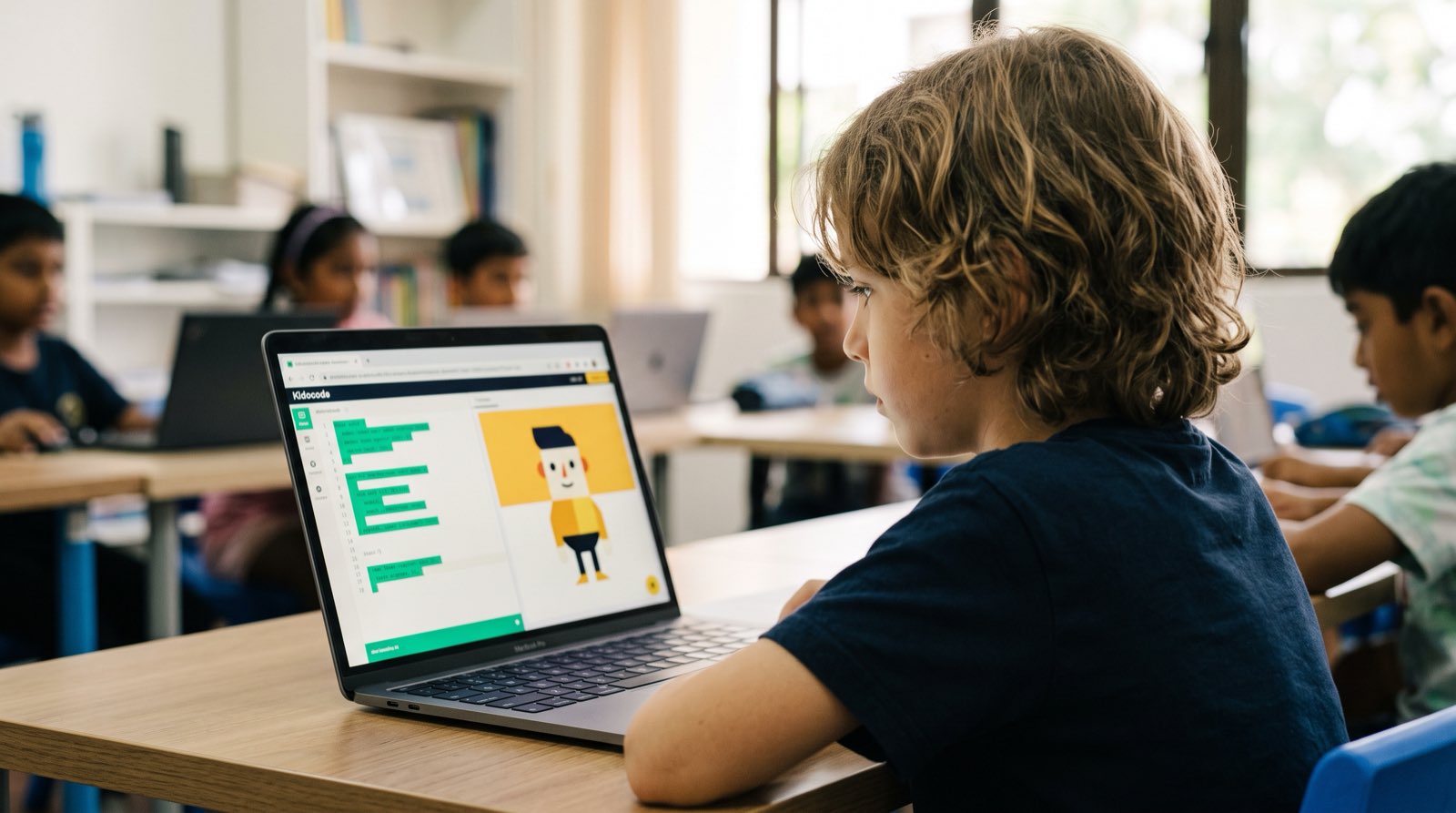
Ask a parent what web design looked like when they were young and you will usually hear about typing tags into a plain text editor until coloured text appeared on a black screen. That is not what it looks like for children now. Building a site today is not a memory test for syntax. It is a sandbox where a child combines layout, mathematics and AI tools, then publishes the result somewhere other people can actually see it.
A child who builds a site stops being an audience for the internet and becomes one of the people making it. They find out how code organises information, how a handful of geometric rules decide what appears where on a screen, and how JavaScript makes a page respond to a click. AI coding assistants have changed the pace of this work: a missing bracket no longer eats an afternoon, so the time goes into design decisions and logic instead.
This guide covers what children aged 5 to 18 actually learn while building a first site, where the work overlaps with school mathematics, and why the skill still matters in a world of AI code generation.
| Key Area | Traditional View | What Kids Actually Learn Building Websites |
|---|---|---|
| Technology Role | Memorising HTML tags and CSS syntax | Structuring data, semantic hierarchy, and digital agency |
| Mathematics Connection | Rote worksheet calculations | Cartesian coordinates, aspect ratios, responsive percentages, and geometric logic |
| Creativity & UX | Making pages look pretty with colours | Designing user interfaces (UI), user experience (UX) layout, and content flow |
| Problem Solving | Trial-and-error code typing | Systematic debugging, structural decomposition, and logical troubleshooting |
| AI Integration | Fear that AI automates web coding | Using AI assistants to accelerate syntax, enabling focus on architectural logic |
Table of Contents
- From Browsing the Web to Building It
- The Web Architecture Ladder: HTML, CSS, and JavaScript
- 5 Essential Skills Kids Develop Through Web Design
- The Math Behind the Screen: Coordinates, Ratios, and Layout Logic
- How AI Code Assistants Change How Kids Learn Web Design
- Web Design vs App Development: Which Should Your Child Start With?
- The Progression Track: What Web Projects Look Like by Age
- Overcoming Common Hurdles: Typing, Syntax, and Screen Time Concerns
- How Kidocode Teaches Web Development Across Our Three Pillars
- A Step-by-Step Home Guide: Your Child's First Web Project
- Printable Web Design Project Launch Checklist
- Frequently Asked Questions
- References
From Browsing the Web to Building It
Children spend hours a day inside apps, video platforms and online learning tools. Using those things does not teach them how any of it works. Passive viewing tends to fragment attention; structured making does something different.
A review of 46 studies on children's screen habits, published in 2025, found that unstructured, high-volume screen time correlates with reduced physical activity and attention difficulties, while interactive and educational screen use with clear learning goals produces neutral or positive developmental outcomes [1].
Something shifts the first time a child stops scrolling a page and opens the code behind it. The internet stops looking like magic and starts looking like software that people wrote, one decision at a time.
At Kidocode we like to turn the screen-time argument around. What if the hours going into passive consumption went into building instead? Same laptop, same afternoon, but now the child is laying out the page, adding the content and writing the interface.
The Web Architecture Ladder: HTML, CSS, and JavaScript
Three technologies carry the entire internet, and each one asks a child to think in a different way.
1. HTML: The Skeleton and Structure
HyperText Markup Language (HTML) is the structural core of a page. Children learn semantic hierarchy here, including how elements nest inside each other in the parent-child tree known as the Document Object Model (DOM).
- What kids build: Headings, paragraphs, navigation links, images, forms, embedded media.
- Core concept: Structural decomposition. The child breaks a complicated page into discrete semantic containers (
<header>,<main>,<article>,<footer>).
2. CSS: The Visual Style and Geometry
Cascading Style Sheets (CSS) handles appearance, positioning and layout. Nothing here is freehand drawing. Margins, padding, grids and colour behaviour are all set by rules the child writes.
- What kids build: Page themes, flexbox layouts, grid alignments, hover animations, dark mode toggles.
- Core concept: Spatial layout and geometric logic. Coordinates, percentages and box models decide exactly where pixels land.
3. JavaScript: The Interactivity and Brains
JavaScript brings in dynamic logic, variables, conditional statements and event listeners. A static page becomes a working application.
- What kids build: Quizzes, calculators, dark-mode switches, pop-ups, live search bars.
- Core concept: Algorithmic execution and state management. The child learns how code reacts to clicks, keyboard input and API responses.
5 Essential Skills Kids Develop Through Web Design
The technical output is only part of it. Building a working site also trains habits of mind, creative confidence and a healthy suspicion of dodgy input fields.
1. Structural Reasoning and Decomposition
Before any code gets written, the child has to look at a page and work out where one region ends and the next begins. Where does the navigation stop? Where does the main content start? That habit, decomposition, is a pillar of computational thinking, and it is how large problems become a series of small ones.
2. Visual-Spatial Geometry and Precision
A responsive page demands spatial reasoning. Widths, margins and columns have to hold together on a wide desktop monitor and on a phone screen a fraction of that size. Guessing at pixel values stops working quickly, and children move towards ratios and deliberate alignment.
3. User Experience (UX) and Digital Agency
A 2020 study run across Southeast Asia by UNESCO and SEAMEO surveyed 15-year-old Grade 10 students in 32 schools. Students rated themselves lowest in Digital Creativity and Innovation, well below digital safety or basic literacy [2]. The regression analysis in the same report showed that students with active coding skills were significantly more likely to score highly across every digital citizenship and agency domain [2].
Web design lands squarely in that gap. Designing a form, a navigation path or an accessible button forces a child to think about the person on the other side of the screen.
4. Systematic Debugging and Persistence
Feedback in the browser is instant and unforgiving. Forget a closing tag or drop a CSS bracket and the layout collapses in front of you. Children learn to open developer tools, inspect the element, follow the error back to its source and fix it, rather than randomly changing things and hoping. The patience that builds is worth as much as the technique.
5. Digital Safety and Code Security
Building forms and embedding media puts a child in contact with protocols, data inputs and privacy questions. Once you have written the code that collects a name and an email address, phishing pages and sloppy password handling look very different. For more on protecting young learners online, read our guide on teen safety and AI chatbots.
The Math Behind the Screen: Coordinates, Ratios, and Layout Logic
Parents often want to know how this connects to school subjects. The short answer is that web design is geometry and algebra you can see.
Plenty of students struggle with abstract formulas because a worksheet gives them nowhere to land. Use the same maths to position an image or animate a button, and the rule becomes obvious. Our maths pillar starts from one assumption: the child is fine, the teaching method wasn't. When children learn math by building, the reluctance tends to evaporate.
| School Cartesian plane | Computer display | |
|---|---|---|
| Origin (0, 0) | Centre of the grid | Top-left corner of the screen |
| Positive X-axis | Moves right | Moves right |
| Positive Y-axis | Moves up | Moves down |
1. Cartesian Coordinates on Computer Displays
In school geometry the origin sits at the centre and positive climbs upward. Screens do not work that way. The origin sits at the top-left corner, the positive -axis runs right, and the positive -axis runs downward.
Positioning an element with absolute CSS coordinates or animating it with JavaScript means calculating pixel offsets in that system:
Working in screen coordinates gives students an intuitive grip on spatial transformations, negative offsets and boundary checks.
2. Aspect Ratios and Responsive Scaling
Keeping images and containers in proportion is ratio algebra. For a standard video container, height scales with the width of its container:
If that container stretches to on a tablet, the student works out:
3. Percentages, Fractions, and CSS Flexbox Math
Modern layouts run on flexible box models (Flexbox) and CSS Grid. Dividing screen space evenly means working with fractional units (fr) and percentages:
Change one of those variables and the page rearranges itself immediately. Fractions, division, ratios and percentages stop being things to memorise and start being materials.
How AI Code Assistants Change How Kids Learn Web Design
Now that tools can write code from a text prompt, parents ask a fair question: will any of this still be a useful skill in 2035?
A 2025 position paper from the Raspberry Pi Foundation took that question head-on. Looking at industry trends and economic forecasts, the authors argued that skilled human developers remain essential for turning messy real-world problems into computational form, judging the output a model produces, and holding the architecture together [3]. The paper also cited structural analysis of more than 211 million lines of AI-assisted code changes, which showed measurable erosion in code quality where no human provided structural oversight [3].
AI speeds up the typing. It does not do the thinking. Directing a model well takes real structural literacy: a student who does not understand HTML semantics or CSS positioning cannot brief an assistant properly, and cannot tell when the code it hands back is broken.
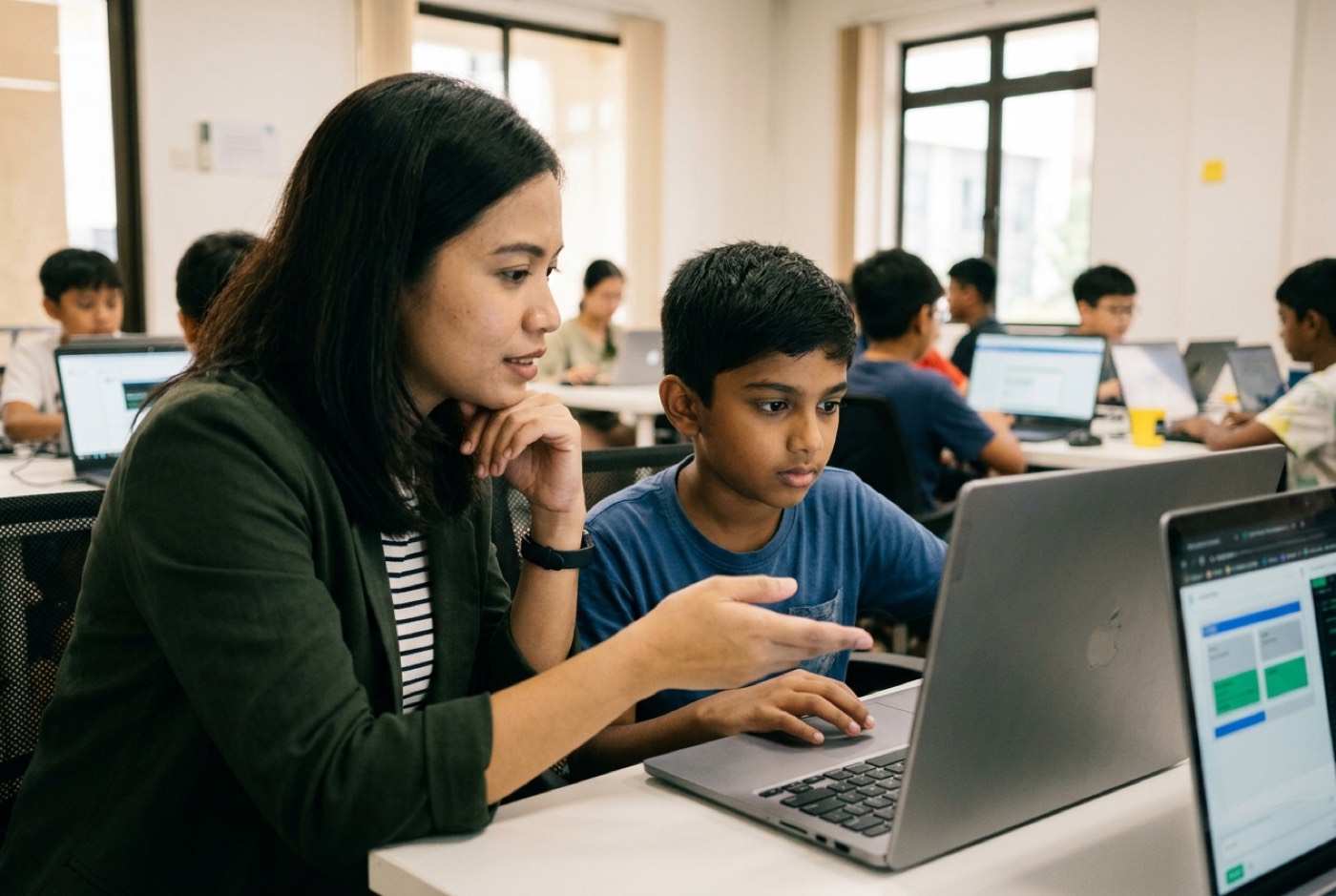 In our web development tracks, AI assistants sit inside the learning experience rather than beside it:
- Syntax Acceleration: Beginners no longer lose forty minutes hunting a missing closing bracket. Small syntax bugs get fixed on the spot and momentum survives.
- Rapid Prototyping: Students generate a first layout from a natural-language prompt, then open the CSS and HTML and change it by hand.
- Architectural Focus: With boilerplate delegated, attention goes to user logic, accessibility and database connections. Our guide on coding with AI tools breaks this approach down in detail.
Web Design vs App Development: Which Should Your Child Start With?
Web design and mobile app development are the two usual candidates for a first software track. Both build computational thinking. They differ mainly in setup, platform constraints and how much friction stands between the child and a visible result.
| Feature / Criteria | Web Design Track (HTML, CSS, JS) | Mobile App Development Track |
|---|---|---|
| Primary Code Stack | HTML5, CSS3, JavaScript | Block-based (App Inventor) or React Native / Swift / Kotlin |
| Instant Playback | High. Runs in any web browser without installation | Medium. Requires device emulators or mobile pairing |
| Cross-Platform Compatibility | Native to all devices (Laptops, Tablets, Phones) | Requires separate iOS and Android builds or platform tools |
| Hardware Requirements | Any standard web browser and light text editor | Higher RAM and processing requirements for mobile emulators |
| Core Mathematical Focus | Geometric layouts, percentages, Cartesian screen coordinates | Mobile sensors, device state, touch coordinates, local storage |
| Recommended Starting Age | Ages 7–18 (Visual layouts from 7; text coding from 9) | Ages 9–18 |
For most beginners the web wins on entry cost. Every laptop already has a browser. Five lines of HTML, a refresh, and the page is there. If you are weighing up the mobile route, read our guide to app development for kids.
The Progression Track: What Web Projects Look Like by Age
Reading comfort and logical maturity vary enormously between a seven-year-old and a fifteen-year-old, so the tools change with them.
timeline
    title Web Development Progression Track
    Ages 5-7 : Visual Block Interfaces : Drag-and-drop web elements : Basic canvas layouts and colors
    Ages 8-11 : HTML5 and CSS Fundamentals : Personal hobby websites : Simple DOM interactions with JavaScript
    Ages 12-14 : Responsive Web Apps : Flexbox and CSS Grid layouts : Dynamic APIs and interactive forms
    Ages 15-18 : Full-Stack Web Systems : Web frameworks and databases : AI API integration and cloud hosting
Ages 5–7: Visual Layouts and Spatial Building
Typing is the bottleneck at this age, so it gets moved out of the way. Children work on layout logic, spatial arrangement and computational ideas through drag-and-drop editors and block interfaces.
- Target Skills: Page flow, ordering instructions, colour harmony, visual hierarchy.
- Example Project: An interactive digital storybook or a simple visual portfolio site.
Ages 8–11: Core Web Syntax and Personal Websites
As keyboard speed comes up, children move into real HTML5 and CSS3. Semantic tags, image embedding, basic styling, and their first JavaScript click events.
- Target Skills: Text syntax formatting, file paths, visual alignment, foundational box models.
- Example Project: A blog about a favourite hobby, an interactive animal encyclopedia, or a multi-page school project site.
Ages 12–14: Responsive Layouts and Dynamic Web Applications
Teens build sites that hold up across phones, tablets and desktops using Flexbox and Grid, and write JavaScript that changes the page while it runs.
- Target Skills: Responsive design algebra, DOM manipulation, arrays, event handlers, form processing.
- Example Project: An interactive calculator, a local weather dashboard pulling live APIs, or a browser mini-game.
Ages 15–18: Full-Stack Concepts and AI-Powered Web Applications
Older students move to frameworks, back-end servers, databases and AI application programming interfaces (APIs), and deploy real software to public servers. Teens thinking about university applications should also read our article on coding and AI for university admissions.
- Target Skills: Back-end logic, API integration, cloud hosting, user authentication, AI prompt engineering.
- Example Project: An AI-powered study dashboard, a custom store front-end, or a platform that generates content using AI language models.
Overcoming Common Hurdles: Typing, Syntax, and Screen Time Concerns
Three concerns come up in almost every trial session. Here is how we handle them.
"My child types slowly or struggles with special code characters."
Typing is muscle memory, and it builds through use. We do not ask children to be fluent typists before they start. Starter sessions lean on auto-completion, syntax scaffolding and short structured keyboard drills. Within three or four weeks, speed and comfort with the awkward characters (< > { } [ ] /) roughly double on their own.
"Will web design conflict with my child's existing school workload?"
Fair worry, especially in exam season. Session packages run across weekends, school holidays and weekday slots, so families fit sessions around whatever the term is doing. In practice the projects replace passive screen time rather than study time, and children come to them after homework is done.
"What if my child has zero prior exposure to coding?"
Then they start where every other beginner starts. Each child gets a setup matched to their reading level and logical experience, whether they arrive at 7 or at 15, and the first thing they touch is a project rather than a theory.
How Kidocode Teaches Web Development Across Our Three Pillars
Our approach rests on three pillars: AI to survive, Math to think, and Tech to build.
| Pillar | What it covers |
|---|---|
| 1. AI to survive | Teaching kids to direct AI safely, critically and well |
| 2. Math to think | Applied maths through builds, with a personalised AI tutor |
| 3. Tech to build | Six tracks: Web, Python, Mobile, Game, Electronics, 3D |
Coding is bundled free across all three pillars, because computational thinking is what we actually teach.
1. AI School First
We treat AI as neither a threat nor a cheat code. In web development classes, students learn to brief an assistant, check what it returns and stay safe while doing it, alongside the syntax itself.
2. Math Through Builds
Instead of another stack of worksheets, children use layout geometry, coordinates and aspect ratios to construct pages that have to work. Every student also gets a personalised AI maths tutor that adapts to their pace.
3. Tech Track: Web Development Bundled with Free Coding
Six technical tracks are on offer: Web Development, Python, Mobile Apps, Game Development, Electronics and 3D Modelling. Coding is bundled free in every membership package. Syntax knowledge is public property now; what we teach is computational thinking, architectural design and the ability to solve a problem nobody has pre-solved for you.
Campus Locations and Learning Options
Since 2014, Kidocode has welcomed over 9,500 active students across Malaysia, with an independent 4.6-star rating from family reviews. You can enrol at any of our five campuses or join the live online programme:
- Klang Valley Flagship Campuses:
- Solaris Mont Kiara (HQ): Serving Mont Kiara, Sri Hartamas, and central KL families.
- Sunway Nexis (PJ): Conveniently located in Kota Damansara for Petaling Jaya and Subang families.
- Penang Campuses:
- Q2 Waterfront (Bayan Lepas): Serving Bayan Lepas and southern Penang Island.
- Vantage (Tanjung Tokong): Regular classes serving northern Penang Island.
- Icon City (Bukit Mertajam): Serving Seberang Perai and Mainland Penang families.
- Live Online Programme: Camera-on, fully interactive live trainer sessions with 1-on-1 support, accessible anywhere in Malaysia and internationally. Both parents are always welcome to join.
Kidocode was founded by computer scientist and AI researcher Hossein Tohidi, known to students and parents as Unclecode, creator of Crawl4AI (over 12 million downloads and 76,000+ GitHub stars). His architectural philosophy runs through the software curriculum, which is why children here learn to modern engineering standards rather than classroom shortcuts.
A Step-by-Step Home Guide: Your Child's First Web Project
You do not need to be a developer to run this at home. Four steps, one afternoon, one live page.
Step 1: Choose a Concrete Topic
Pick something your child actually cares about:
- A profile page for the family pet.
- A fan guide for a favourite video game or hobby.
- A review page for books or films they have finished recently.
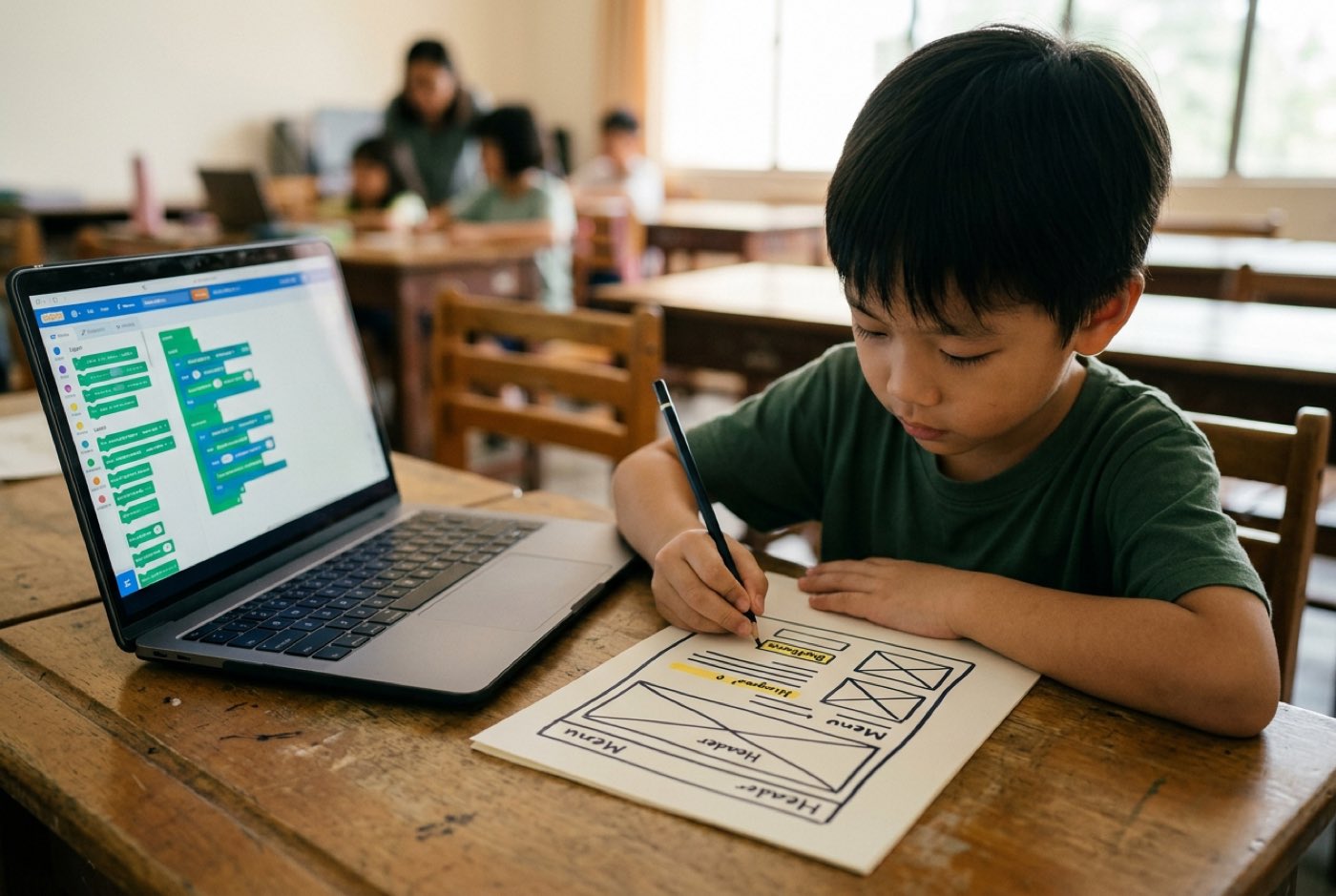
Step 2: Draw a Paper Wireframe (Decomposition)
Keep the computer closed for this part. Give your child paper and markers, and ask them to divide the page into boxes:
- Top box: Heading title and logo (Header).
- Middle left box: Description text and paragraphs (Main content).
- Middle right box: A photo or image placement (Media).
- Bottom box: Contact info or author credit (Footer).
Step 3: Write the Initial HTML Structure
Open a plain text editor or an online sandbox such as CodePen or Replit, and help your child type the structural tags:
<!DOCTYPE html>
<html>
  <head>
    <title>My First Web Page</title>
  </head>
  <body>
    <header>
      <h1>Welcome to My Hobby Page</h1>
    </header>
    <main>
      <p>This is my very first website built from scratch!</p>
    </main>
  </body>
</html>
Step 4: Add Visual CSS Rules and Test
Let them loose on background colours, font sizes and image alignment:
body {
  background-color: #f0f4f8;
  font-family: Arial, sans-serif;
  margin: 20px;
}

h1 {
  color: #1a365d;
}
Save the document as index.html, double-click it, and it opens in any browser.
Printable Web Design Project Launch Checklist
Print this and work through it with your child, from the first sketch to the final safety check.
- Select a project topic (Hobby, Pet, Game Review, or Book Portfolio).
- Draw a paper wireframe dividing the page into Header, Main Body, and Footer.
- Write down the exact text headlines and paragraphs on paper first.
- Collect 2–3 copyright-free images or personal photos to include on the page.
Designed, ready to print and sign. We email it to you together with a 5% discount on your next registration.
Frequently Asked Questions
Does my child need prior coding experience before starting web design?
No. Beginners start with basic HTML tags and layout concepts, then move on to CSS styling and JavaScript logic.
What hardware or software is needed at home for web design?
Any laptop or desktop running Windows, macOS or ChromeOS with a modern browser (Chrome, Firefox or Safari) will do. No graphics card, no high-end processor. For specific machine recommendations, see our guide on choosing a laptop for kids coding and AI.
Is web design suitable for primary school children aged 7 to 10?
Yes. Children aged 7 to 10 do well with visual layouts, image formatting and styling colours. Younger students concentrate on structure and basic HTML, while older ones take on JavaScript algorithms and dynamic data.
How does web design connect to school subjects like math and art?
It sits between the two. Colour theory, visual hierarchy and interface layout come from art; Cartesian coordinates, aspect ratios, percentage calculations and box geometry come from maths.
Can my child learn web design online, or is physical campus attendance better?
The curriculum is identical either way. Our live online programme runs camera-on with direct trainer support. Families near Solaris Mont Kiara, Sunway Nexis PJ, Bayan Lepas, Tanjung Tokong or Bukit Mertajam can attend in person instead.
How can we book a hands-on web design trial at Kidocode?
Reserve a free trial at any of our five campuses or online. In the two-hour session your child builds a real working project in AI, maths or tech, and parents get a full guided walkthrough. Visit our free trial registration page to pick a weekend or weekday slot.
References
- Kar, S. S., Dube, R., Goud, B. K. M., Gibrata, Q. S., El-Balbissi, A. A., Al Salim, T. A., & Fatayerji, R. N. M. A. K. (2025). Screen Time and Child Development: A Systematic Review of Recent Literature. Children, PMC12563978. https://pmc.ncbi.nlm.nih.gov/articles/PMC12563978/
- Mabunga, R. A. S., Abulencia, A. S., David, A. P., Montebon, D. R. T., Naldoza, N. D., Zamora, N. C. L., & Macahilig, H. B. (2020). Digital Kids Asia-Pacific (DKAP) Research Report: Philippines. SEAMEO, PNU, DepEd Philippines, & UNESCO Bangkok. https://www.seameo.org/img/Programmes_Projects/2020/DKAP/files/Reports/DKAP%20Philippines%20Report.pdf
- Colligan, P., Griffiths, M., & Cucuiat, V. (2025). Why Kids Still Need to Learn to Code in the Age of AI. Raspberry Pi Foundation Position Paper. https://static.raspberrypi.org/files/about/Why-kids-still-need-to-learn-to-code-in-the-age-of-AI-2025-Raspberry-Pi-Foundation-position-paper.pdf