

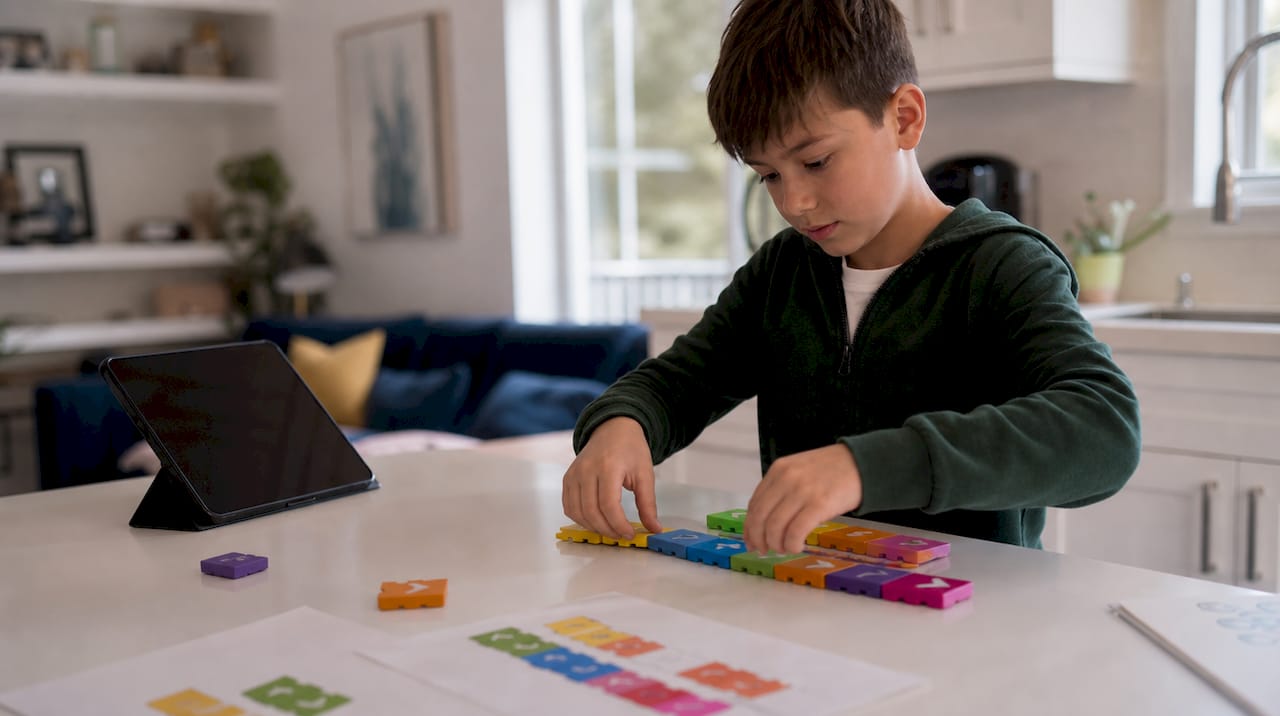
The fastest effective start for coding for kids is block-based programming for ages 5–10, then a quick pivot to introductory Python or JavaScript for ages 11 and up. One thing has changed in the last two years: with an AI coding assistant sitting next to them, kids can reach real text-based coding much sooner than the traditional Scratch-then-Python ladder suggests, because the assistant absorbs the syntax frustration while the child focuses on the logic. The best tool and initial project type still depends on your child's age and starting point (see detailed breakdown below). All tracks can be wrapped inside a 6-week project plan your child can finish and show off. You can take the first step in under 30 minutes: open Scratch with your child, follow the "Animate Your Name" starter tutorial, and you'll have a finished mini-project before bedtime. That one session becomes Week 1 of the plan below.
Three quick signposts before we go deeper:
- Ages 5–10: Scratch or ScratchJr, first project = a one-scene animated story (30 minutes, no account needed to start)
- Ages 11–14: Scratch to Python bridge, first project = a text-based quiz game (one 45-minute session)
- Ages 15–18: Python or JavaScript, first project = a working webpage or simple data script (one 60-minute session)
Pro Tip: Don't wait for the "right time" to start. Research on hands-on coding experiences shows that when coding is presented as play and creation, children build genuine confidence fast. One small finished project beats ten unfinished tutorials.
Key Takeaways
The single most important thing you can do today is get your child to finish one small project, because a completed artifact builds more confidence than any amount of passive watching or reading about code.
| Point | Details |
|---|---|
| Start by age and tool | Ages 5–10 begin with Scratch or ScratchJr; ages 11+ move to Python or JavaScript after one block-coding session. |
| Use the 6-week plan | Follow the Track A or Track B plan above; Week 6 ends with a demo and a portfolio upload. |
| Free resources exist | Code.org and Scratch are free, fully functional starting points for every age band. |
| Choose programs by projects | Ask any provider what your child will have built after 8 weeks; no project output is a red flag. |
| Kidocode free trial | Kidocode offers a no-commitment free trial class across six tech tracks for kids ages 5–18. |
Table of Contents
- What kids actually learn from coding, broken down by age
- Which program format actually fits your child's life?
- The right tools and languages for each age group
- How to choose a coding program without getting burned
- How long real progress takes
- A 6-week starter plan you can use right now
- Free places to start today, including a 20-minute first lesson
- Teaching strategies that actually keep kids motivated
- How Kidocode thinks about age progression and project-first learning
- Kidocode's free trial is the lowest-risk next step for your child
- Sources
What kids actually learn from coding, broken down by age
Coding is the vehicle. Computational thinking, sequencing, decomposition, pattern recognition, and debugging, is the destination. Here's what that looks like at each stage.
Ages 5–7. At this age, the goal is sequencing and cause-and-effect. Kids learn that instructions must be in the right order, that a computer does exactly what you tell it (not what you mean), and that fixing a mistake is part of the process. Typical outcomes: a character that moves across a screen, a simple animation, a short interactive story. Progress shows up as a child confidently dragging blocks and asking "what if I change this?"
Ages 8–11. Loops, conditionals, and basic variables become accessible here. A child this age can build a simple game with a score counter, understand why a loop saves them from writing the same block 20 times, and start debugging with some independence. Core programming concepts transfer across languages when taught one concept at a time, so the logic a child learns in Scratch maps directly to Python later.
Ages 12–14. This is the bridge stage. Kids move from visual blocks toward text-based syntax, encounter functions and basic data handling, and start building things that feel real: a quiz app, a simple website, a sensor-triggered LED. Debugging becomes a genuine skill rather than a frustration response.
Ages 15–18. Abstraction, APIs, version control with Git, and introductory AI concepts come into range. Projects at this stage can include data visualizations, mobile app prototypes, or hardware demos using a Raspberry Pi. The measure of progress shifts from "did it run?" to "is it well-structured and could someone else read this code?"
Pro Tip: Set a 4-week checkpoint, not a 4-month one. Ask: "Can your child explain what their project does to a sibling?" That verbal explanation is one of the clearest signs that real understanding has taken hold.
| Age Band | Core Concepts | Typical Project Outcome | Progress Signal |
|---|---|---|---|
| 5–7 | Sequencing, cause-and-effect | Animated story, moving character | Confidently modifies blocks independently |
| 8–11 | Loops, conditionals, variables | Simple game with score, interactive quiz | Debugs without prompting |
| 12–14 | Functions, basic data, text syntax | Quiz app, basic website, LED project | Reads and explains someone else's code |
| 15–18 | Abstraction, APIs, AI basics | Data visualization, mobile prototype | Writes structured, readable code |
Which program format actually fits your child's life?
There's no single best delivery format. The right one depends on your child's temperament, your schedule, and how much structure they need to stay on track.
Weekly live classes (in-person or online) are the most consistent format for building habits. A 45–60 minute session once or twice a week keeps concepts fresh without overwhelming a school schedule. Live instruction means a teacher can catch a misconception before it becomes a bad habit, which matters most for ages 8 and up when syntax errors start appearing.
After-school clubs add peer motivation, which is genuinely underrated. Kids who see a classmate finish a game are more likely to push through a stuck moment. The limitation is that clubs often lack a structured curriculum progression, so they work best as a supplement rather than a primary learning path.
Weeklong camps offer immersion. A child who attends a 5-day coding camp can go from zero to a working game prototype in a week, because the concentrated time removes the "I forgot what we did last Tuesday" problem. The downside is that without follow-up practice, the skills fade quickly. Camps work best as a launchpad, not a standalone program.
Self-paced platforms give flexibility, but they demand self-discipline that most children under 12 simply don't have yet. For teenagers who are internally motivated, a self-paced path through Codecademy or similar platforms can be highly effective. For younger kids, a parent or educator needs to sit alongside them, at least for the first few weeks.
School partnerships are growing as AI and computer science become recognized as foundational for K–12 readiness, though many state policies still lag behind curriculum needs. If your child's school offers a structured CS track, it's worth supplementing rather than replacing it with an outside program.
Practical scheduling: ages 5–8 do best with 20–30 minute sessions; ages 9–12 can handle 45 minutes; teens can sustain 60–90 minutes when the project is engaging.
The right tools and languages for each age group
Choosing the wrong tool for the wrong age is the most common reason kids lose interest. Here's how to match the tool to the child.
Ages 5–7: ScratchJr (tablet, free), Kodable, and CodeSpark are the three strongest starting points. These apps prioritize block-based, play-driven learning and require no reading ability for the youngest users. The conceptual payoff is sequencing and basic logic, not syntax. Scratch (the full desktop version) is accessible by age 6–7 with adult guidance.
Ages 8–11: Scratch remains useful through age 10, but it is not the only engagement layer. Game worlds kids already love work even better: building in Roblox Studio or automating Minecraft mixes genuine problem-solving concepts into play a child would choose anyway. By age 10–11, many kids are ready for a block-to-text bridge, and with an AI coding assistant beside them, that bridge is shorter than it used to be: the child describes what they want, reads the code the assistant produces, and learns to modify it.
Ages 12–14: Python is the most practical first text language at this stage. It reads close to plain English, the error messages are informative, and the community resources are vast. micro:bit is an excellent hardware introduction here: a small programmable board that can control LEDs, sensors, and motors, giving code an immediate physical result. JavaScript is a strong alternative for kids drawn to web projects.
Ages 15–18: Python deepens into data handling and introductory machine learning. JavaScript opens the door to front-end web development. Raspberry Pi projects, Arduino, and introductory robotics become motivating milestones. Coursera's "Programming for Everybody" course covers Python fundamentals with no prerequisites and suits self-directed teens well.
The key trade-off: block platforms deliver immediate engagement and a finished product in the first session, which builds confidence. Text languages take longer to produce a visible result but transfer to real-world tools. The traditional answer is block first, text second, with the transition timed to when the child starts feeling constrained by blocks. AI coding assistants have moved that transition earlier: a 9-year-old who would have spent months in blocks can now write and modify real Python with an assistant handling the syntax details, so the child spends their effort on the thinking, not the typing. This is how Kidocode structures it: Scratch, Roblox, and Minecraft as the engagement layer, real code with AI assistance as soon as the child is ready, which is usually sooner than parents expect.
How to choose a coding program without getting burned
The children coding classes market is crowded, and not all programs are equal. Here's a practical screening process.
Five criteria that matter most:
- Curriculum progression. Does the program have a documented path from beginner to intermediate? Ask to see the syllabus for the first three months.
- Project-based learning. Every session should end with something the child built, not just watched. If the demo shows a teacher coding while kids observe, walk away.
- Instructor qualifications. Ask specifically: does the instructor have experience teaching children, not just coding? Technical skill and teaching skill are different.
- Class size. For live instruction, more than 8–10 students per instructor means individual debugging help becomes rare. Online classes can stretch slightly larger with good platform support.
- Trial availability. Any reputable program offers a free trial or demo class. If they don't, that's a red flag.
Questions worth asking any provider:
- What does a typical session look like from start to finish?
- What project will my child have completed after 8 weeks?
- How do you handle a child who gets stuck or frustrated?
- What's your policy if my child needs to pause enrollment?
Red flags to watch for: programs that lead with certificates rather than projects; no visible student work examples; instructors who can't explain their teaching approach in plain language.
How long real progress takes
Free resources are a legitimate starting point, but structured, project-based programs accelerate portfolio building and create the accountability that keeps kids practicing between sessions.
Realistic progress timelines:
A child starting from zero can produce a playable game in 2–4 weeks of consistent practice. A basic working webpage in HTML/CSS takes about 6–8 weeks. A functional Python script that does something useful (a quiz, a simple calculator) takes 8–12 weeks for a motivated 12-year-old, and with an AI coding assistant in the loop, often faster. Hardware projects like a micro:bit sensor display typically take 4–6 weeks once a child has basic coding foundations.
The biggest cost isn't the fee, it's inconsistency. A child who codes for 20 minutes three times a week will outpace one who does a two-hour session once a month, every time. Frequency beats duration at every age.
Pro Tip: Before committing to a paid program, use the free trial to check one specific thing: does your child leave the session wanting to show someone what they made? That single reaction predicts long-term engagement better than any curriculum document.
A 6-week starter plan you can use right now
This plan works for two tracks. Pick the one that fits your child's age.
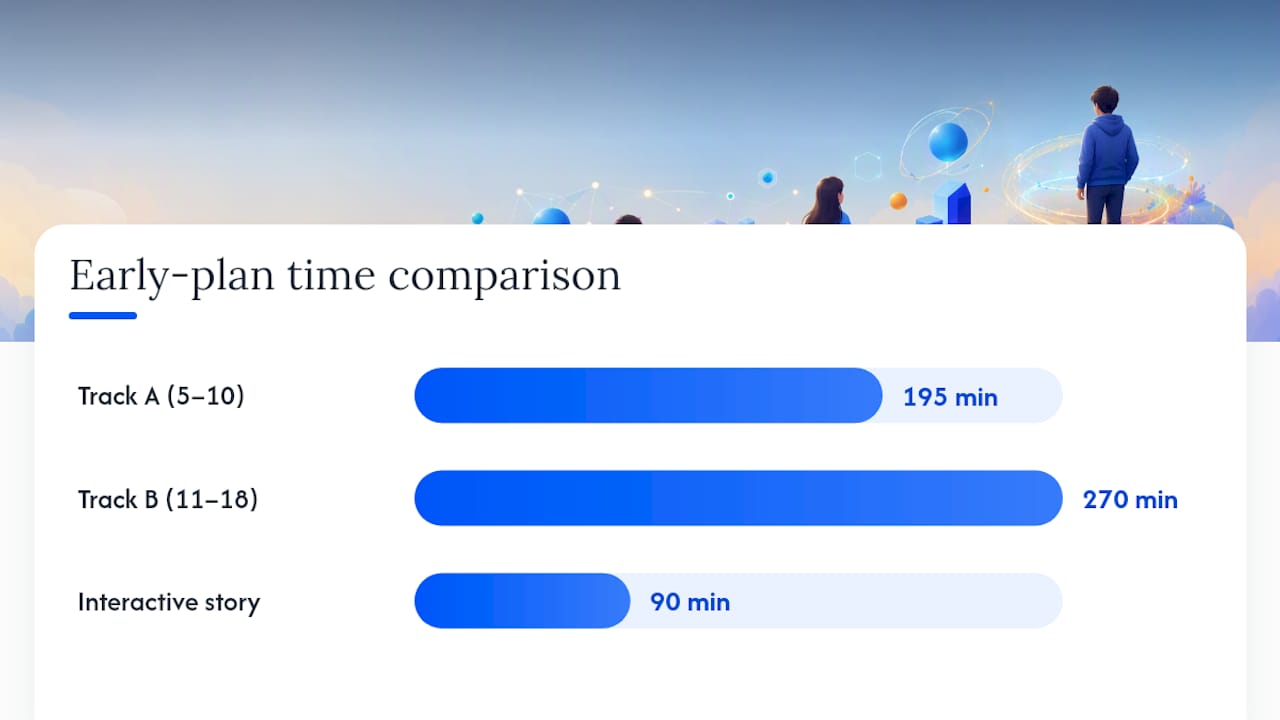
Track A: Ages 5–10 (block-first)
- Week 1. Open Scratch, complete "Animate Your Name." Goal: one finished animation. Time: 30 minutes.
- Week 2. Build a character that moves when you press arrow keys. Introduce loops. Time: 30–40 minutes.
- Week 3. Add a second character and a simple dialogue. Introduce conditionals ("if touching, then..."). Time: 40 minutes.
- Week 4. Start a simple game: a character that catches falling objects. Time: 45 minutes across two sessions.
- Week 5. Add a score counter and a "game over" screen. Introduce variables. Time: 45 minutes.
- Week 6. Polish and present. Your child demos the game to a family member. Upload to the Scratch community gallery.
Track B: Ages 11–18 (block-to-text hybrid)
- Week 1. Complete one Scratch project (any) to establish block logic. Time: 45 minutes.
- Week 2. Install Python (or use an in-browser editor like Replit). Write a "Hello, World" and a simple calculator. Time: 45 minutes.
- Week 3. Build a text-based quiz with three questions using variables and conditionals. Time: 60 minutes.
- Week 4. Add a score tracker and a loop so the quiz repeats. Introduce functions. Time: 60 minutes.
- Week 5. Extend the project: add a high-score display or a timer. Time: 60 minutes.
- Week 6. Present the finished quiz to someone. Write three sentences explaining how the code works. Share on a student portfolio page.
Three sample projects with required materials:
- Interactive story (ages 5–10): Scratch, free browser account, 3 sessions of 30 minutes each.
- Text quiz game (ages 11–14): Python (free), Replit browser editor (free), 4 sessions of 45–60 minutes.
- Basic data project (ages 14–18): Python with the pandas library, a free CSV dataset from data.gov, 4–5 sessions of 60 minutes.
Pro Tip: At the Week 6 checkpoint, ask your child to explain one bug they fixed during the plan. If they can describe the problem and the solution in their own words, they've crossed from following instructions into actual computational thinking.
Free places to start today, including a 20-minute first lesson
You don't need to spend anything to get started. Here are the best no-cost entry points by age, plus a first lesson you can run right now.
- Ages 5–8: ScratchJr (free iPad/Android app) or Code, which includes AI activities and full lesson plans for teachers and parents.
- Ages 8–12: Scratch (scratch.mit.edu, free, browser-based) and Code.org's Hour of Code activities, which take 20–60 minutes and require no setup.
- Ages 12+: Codecademy's free tier covers programming fundamentals with guided practice. Coursera's free audit option for Programming for Everybody is a strong Python entry point for teens.
Your 20-minute first lesson (ages 6–10):
Open Scratch in a browser. Click "Create." Have your child pick a sprite (character) from the library. Drag a "when green flag clicked" block onto the canvas. Attach a "move 10 steps" block. Click the green flag. Watch it move. Now ask: "What happens if we change 10 to 100?" Let them try it. That question, and the act of testing an answer, is the core loop of all programming. By minute 20, add a "say Hello for 2 seconds" block and you have a character that moves and talks. That's a finished artifact. That's Week 1 done.
To turn this into a weekly checkpoint, save the project, note what the child changed on their own, and use that as the starting point for next week's session.
Teaching strategies that actually keep kids motivated
The biggest drop-off in children coding classes happens around week 3–4, when the novelty fades and the first real bugs appear. Here's how to push through that wall.
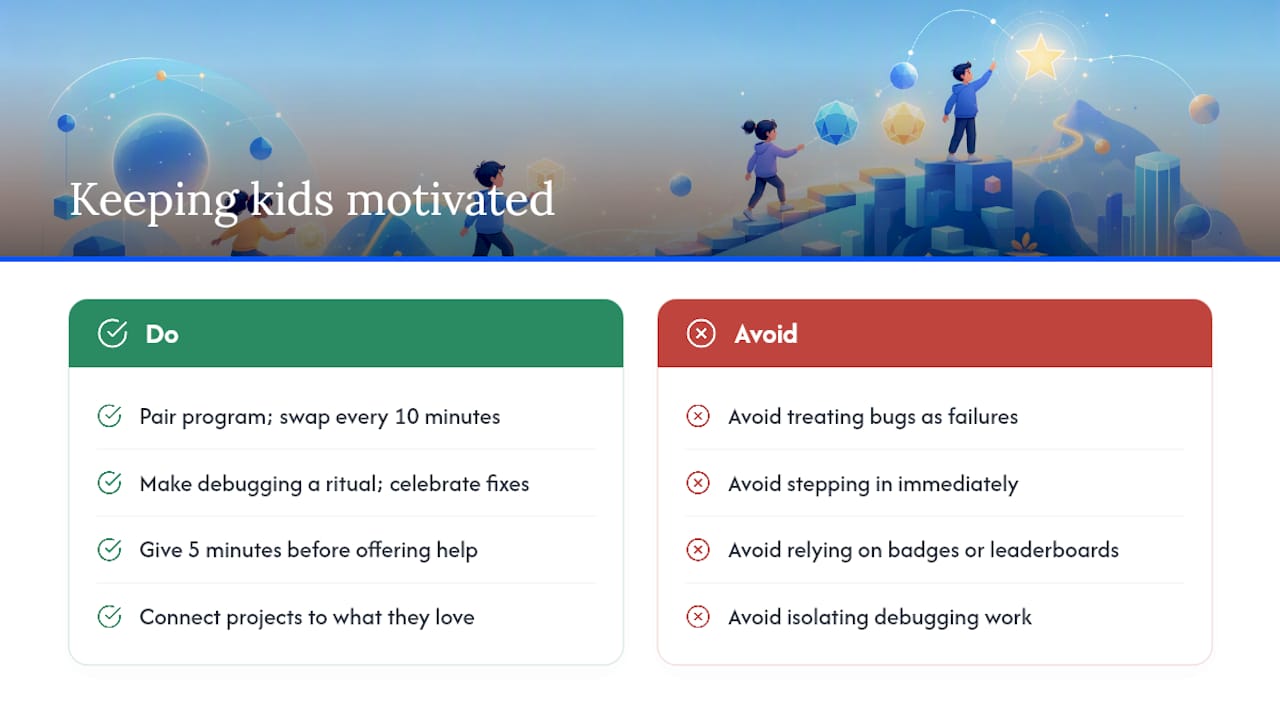
Pair programming works. Sit next to your child and take turns: one person types (the "driver"), the other watches and suggests (the "navigator"). Swap every 10 minutes. This reduces the isolation of debugging and models the collaborative way real developers work. It also gives you a natural window into where your child is actually stuck.
Make debugging a ritual, not a failure. When something breaks, say "great, now we get to be detectives." Name the bug. Write it on a sticky note. Celebrate fixing it. The emotional reframe matters more than it sounds: kids who see bugs as puzzles rather than evidence of failure debug faster and quit less.
Connect projects to what your child already loves. A child obsessed with soccer will build a better game if the sprites are soccer players. A child who loves animals will stay engaged longer on a project about a virtual pet. The coding concepts are identical; the motivation is not.
When to step in, when to wait. Give a stuck child 5 minutes of independent struggle before offering help. That window builds problem-solving muscle. After 5 minutes, offer a hint rather than a solution: "What does that block do again? What if you moved it above this one?" If frustration tips into shutdown, step in fully, but narrate what you're doing so the child can follow.
Showcase work regularly. A mini demo night where your child shows a project to one grandparent or one friend does more for motivation than any reward chart. Student project portfolios give kids a permanent, shareable record of what they've built, which matters more as they get older.
Pro Tip: Badge systems and leaderboards work short-term but fade. The most durable motivator is a child's own curiosity about what their project could do next. Keep asking "what would make this even cooler?" and let their answer drive the next session.
How Kidocode thinks about age progression and project-first learning
At Kidocode, the philosophy is simple: kids learn to code by building things, not by watching someone else build them. Every program is structured around a constructivist model, where each session ends with a student-made artifact, whether that's a game world in Roblox, a Python script, or a working robotics project. The engagement layer uses what kids already love, Scratch for the youngest, Roblox and Minecraft for the middle years, and then AI coding assistants carry them into real code sooner than the traditional ladder allows: the child directs, the assistant handles syntax, the thinking stays with the child.
Coding is actually the smallest part of the story. Coding is bundled free at Kidocode, because what the school really teaches is computational thinking, and that shows up in all three pillars: AI fluency (kids learn to direct AI tools, with safety treated as a co-equal skill), math taught through builds with a personalised AI tutor per child (the same syllabus as school, delivered the opposite way), and tech projects across six tracks. AI isn't an add-on. It's woven into the curriculum from the early stages, which is exactly what a recent industry report identifies as foundational for K–12 readiness. You can see the results in real student project portfolios, where kids ages 5–18 have built apps, games, and AI demos. The teaching philosophy is explained in plain English on the site, and every new student starts with a free trial class so you can see the approach in action before committing.
Kidocode's free trial is the lowest-risk next step for your child
If you've read this far, your child is ready to start. Kidocode serves kids ages 5–18 across six tech tracks: Python, Web, Mobile, Game, Electronics, and 3D, plus dedicated robotics and AI foundations programs. Every track is project-based, every session produces something your child built, and every new student gets a free trial class with no commitment required.
The trial class is a real lesson, not a sales demo. Your child works on an actual project with a qualified instructor, and you'll see exactly how the curriculum progresses and how the instructor handles a stuck moment. It is also where you get program and pricing details for your child's specific plan. Schedules and available tracks are listed on the free trial page. Book a spot, let your child finish one session, and then decide.
Sources
These are the resources referenced throughout this article, each worth bookmarking for the age band or purpose noted.
- Introduction to Programming
- Free K–12 Curriculum for Digital Fluency | CodeAI
- New report: AI & computer science are the foundation for U.S. K–12 readiness but state policies lag behind
- Learn How to Code | Codecademy
- Programming for Everybody (Getting Started with Python) | Coursera
- Today
- Want to teach your kids to code? Here are three apps that can help.