

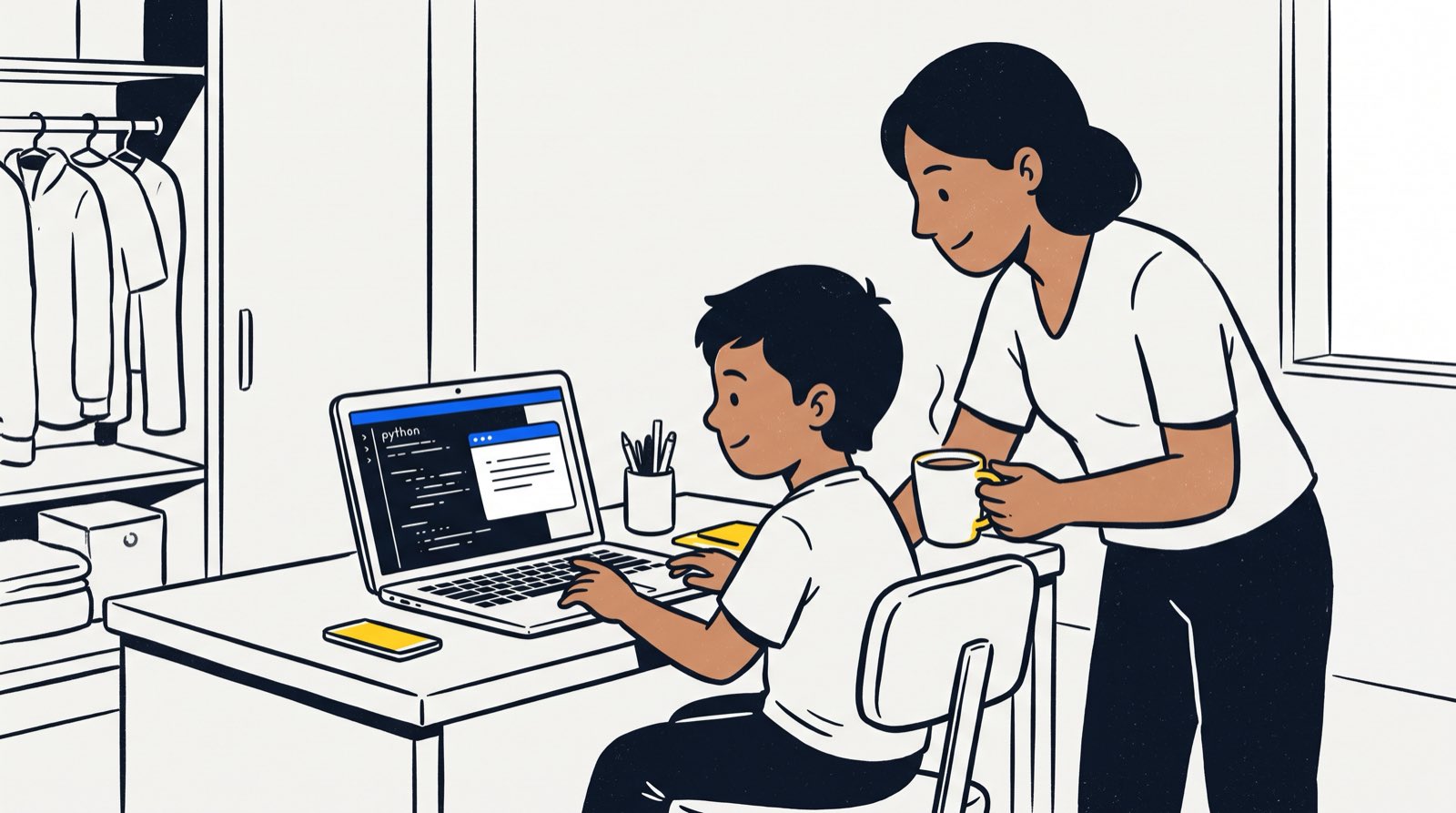
Ask our instructors at Mont Kiara or Penang what parents want to know before the first class and the laptop question comes up fast: do we need to buy a gaming machine before my child starts coding? No. Most primary school children can start on a basic, web-capable computer. Secondary students building text-based projects and directing AI tools need memory far more than they need a graphics card.
The wrong purchase usually goes one of two ways. Either a parent spends heavily on a gaming rig that turns a school bag into a brick, or they buy an underpowered tablet that hits a technical wall about three months in. This guide sets out the hardware a child actually needs at ages 7, 11, and 16, which specs you can safely ignore, and where the money is best spent.
Table of Contents
- The Short Answer: What Specs Matter by Age Group
- Key Takeaways Matrix
- The Three Specs That Actually Matter (and Three You Can Ignore)
- Can My Child Learn Coding on an iPad or Tablet?
- Chromebook Reality Check: Fine for Scratch, Painful for Real Development
- Do You Need a Dedicated GPU for AI and Coding?
- Budget Hardware Tiers in Malaysia
- Second-Hand and Hand-Me-Down Checklist
- Setup and Safety: Configuring the Laptop on Day One
- How Kidocode Handles Hardware in Class
- Printable Laptop Selection Checklist for Parents
- Frequently Asked Questions
- References
The Short Answer: What Specs Matter by Age Group
If you just want a recommendation for your child's age, the requirements split into three stages.
- Ages 5 to 8 (Early Learners): A basic iPad, an Android tablet, or the family laptop with a modern browser will do. Children at this stage learn logic through visual block tools, where touch or simple mouse work is the main input.
- Ages 9 to 12 (Core Coding and Web): Any Windows laptop or MacBook with an Intel Core i5 (or AMD Ryzen 5) processor and 8GB of system RAM. That combination runs text coding tools, basic web environments, and AI assistant interfaces without stuttering.
- Ages 13 to 18 (Advanced Coding, AI, and Game Engines): 16GB of RAM, a 512GB solid state drive (SSD), and a multi-core processor. A dedicated graphics card only becomes necessary if your teen is building complex 3D environments in Unity or Unreal Engine.
timeline
    title Hardware Progression by Age
    Age 5 to 8 : Family iPad or standard laptop : Visual block coding and math games
    Age 9 to 12 : Budget laptop with 8GB RAM : Python web development and basic AI
    Age 13 to 18 : Performance laptop with 16GB RAM : Multi-window AI coding and full-stack builds
Key Takeaways Matrix
The table below summarises what to prioritise at each stage of technical learning.
| Age Group | Primary Software Environment | Minimum Recommended Specs | Ideal Budget Range (MYR) | Major Pitfall to Avoid |
|---|---|---|---|---|
| 5–8 Years | Scratch Jr, Scratch, interactive math builders | iPad, Android Tablet, or entry-level laptop | Touch tablet or existing home laptop | Buying a heavy, fragile laptop too early |
| 9–12 Years | Scratch, Python (IDLE/Replit), web browser AI assistants | Intel i5 / Ryzen 5, 8GB RAM, 256GB SSD | RM 1,800 – RM 2,800 | Buying 4GB RAM laptops that freeze with multi-tabs |
| 13–18 Years | VS Code, Python libraries, HTML/CSS/JS, AI code editors | Intel i5/i7 or Apple M1/M2/M3, 16GB RAM, 512GB SSD | RM 3,000 – RM 4,500 | Overpaying for heavy RTX gaming GPUs unnecessarily |
The Three Specs That Actually Matter (and Three You Can Ignore)
Laptop marketing pushes parents toward expensive features that do nothing for a child learning programming or AI. Knowing which specs actually govern day-to-day performance saves money.

The Three Specs That Matter
- System RAM (Memory): Memory is the single biggest factor for a coding student in 2026. Development work means running an integrated development environment (IDE) such as VS Code next to a stack of browser tabs and an AI assistant. 8GB is the floor for text coding; 16GB keeps everything fluid. Once RAM runs out, the operating system starts swapping data to the drive and the whole machine crawls [1].
- Display Quality (1080p IPS Panel): Students read lines of code and technical prompts for hours. Skip cheap 720p or low-contrast TN screens. A 14-inch or 15.6-inch Full HD (1920x1080) IPS display is easier on young eyes and gives enough room to keep code and output side by side.
- Keyboard Ergonomics: Code leans hard on characters most people rarely type: brackets
{ } [ ], semi-colons;, symbols= + *. Shallow keys or a cramped layout make that miserable. Type on the keyboard in the shop and check that the key travel feels responsive.
The Three Specs You Can Ignore
- Dedicated High-End Gaming GPUs: Sales staff will tell you AI needs an expensive NVIDIA RTX card. For K-12 students learning to prompt, build applications, and wire up cloud-based language model APIs, the heavy processing happens on cloud servers, not on the laptop [2]. Unless your child is rendering dense 3D game geometry locally, integrated graphics (Intel Iris Xe, or the graphics built into Apple's M-series chips) will cover it.
- Massive Storage Capacity (1TB+): Code files are tiny text documents. A 256GB or 512GB SSD leaves plenty of room for the operating system, programming packages, and personal projects. Bigger drives add cost and nothing else at this stage.
- Ultra-Premium Metal Unibodies: Aluminium chassis look good, but plastic composite bodies are often lighter, cheaper, and just as survivable in a school bag.
Can My Child Learn Coding on an iPad or Tablet?
Plenty of Malaysian families already own an iPad or an Android tablet and want to know whether a laptop is really necessary. It depends on your child's age and where they are in their learning.
What Tablets Do Well (Ages 5 to 8)
Tablets are good at introducing foundational concepts to young children. Touch interfaces let early learners drag visual blocks around in ScratchJr without wrestling with a keyboard first. Research on K-12 educational technology notes that touch devices lower input barriers for primary students [3]. In our trial sessions for 5- to 7-year-olds, children pick up sequential logic on a tablet screen without much friction.
The Wall Tablets Hit (Ages 9+)
Once children move from drag-and-drop to real text coding in Python, JavaScript, or HTML, tablets start getting in the way:
- Missing Terminal and File Access: Development work means navigating directory trees, managing local files, and running commands in a terminal. iOS and Android sandbox their file systems, which makes standard developer tools hard to run natively.
- Flawed Keyboard and Shortcut Support: Typing code on an onscreen keyboard is slow and error-prone. Even with an external Bluetooth keyboard, core shortcuts such as
Ctrl+C,Ctrl+V, or terminal interrupts behave inconsistently from app to app. - Window Management for AI Assistance: Coding today usually means a split screen, with code on one side and an AI assistant or documentation on the other. Tablets handle multi-window workflows poorly compared with Windows or macOS.
Past age 8, moving a child off a tablet and onto a laptop makes a visible difference to how fast they progress.
Chromebook Reality Check: Fine for Scratch, Painful for Real Development
Chromebooks are everywhere in education, including within national digital literacy initiatives in Malaysia [4]. They are cheap, last all day on a charge, and are simple to manage. Before buying one for home use, though, it helps to know where the ceiling sits.
| Task | Works on a Chromebook? |
|---|---|
| Web-based block coding (Scratch, Code.org) | Yes |
| Cloud learning platforms (Replit, Google Colab) | Yes |
| Long battery life and budget pricing | Yes, a genuine strength |
| Native Python library installations (Pygame, OpenCV) | No |
| Local IDE installation (VS Code desktop edition) | No |
| Offline programming when internet access is unavailable | No |
| Electronics micro-controller flashing (Arduino, micro:bit USB tools) | No |
A Chromebook is fine for browser-based platforms like Scratch or an online IDE. Installing standard offline developer software means enabling ChromeOS Linux developer mode, which confuses young learners and needs manual troubleshooting whenever a software dependency breaks. If you want one machine that covers text coding, web design, and AI app building without workarounds, a Windows laptop or MacBook is the better buy.
Do You Need a Dedicated GPU for AI and Coding?
AI has moved to the centre of the education conversation, and with it a persistent myth: that a child needs a RM 5,000 gaming laptop with a big graphics card to learn it.
How Kids Actually Build with AI
Students learning to direct AI at Kidocode work on computational thinking, prompt engineering, API integration, and algorithmic logic [5]. They are not training trillion-parameter foundation models on a desk in Petaling Jaya.
When a student builds an AI-assisted application, a custom math tutor, say, or a game with automated dialogue, the laptop sends instructions over web APIs to cloud servers. The local machine handles the code logic and the interface, nothing heavier.
Training large machine learning models locally is a different story: that starts at an 8GB VRAM dedicated GPU such as an NVIDIA RTX 4060, drawing around 170 Watts and costing considerably more [1]. For secondary students, cloud platforms like Google Colab hand out high-performance GPU time through any web browser, no purchase required [1].
| Step | Where it runs | What happens |
|---|---|---|
| 1. Write the code | Student laptop (standard Intel i5) | Student writes Python and builds the interface |
| 2. Send the request | Over the internet | An HTTP API call goes out to the provider |
| 3. Run the model | Cloud AI API (OpenAI / Gemini) | Complex model inference happens on their servers |
| 4. Show the result | Student laptop | A JSON response comes back and the app displays the output |
So: do not buy an expensive gaming laptop just for AI learning. Put the money into a reliable CPU and 16GB of RAM instead. If you want to understand how early exposure to AI tools shapes a child's problem-solving, read our guide on reasons every kid should learn coding with AI tools.
Budget Hardware Tiers in Malaysia
Here is what your money buys across three tiers in the Malaysian retail market.
1. The Entry Tier (Under RM 1,800)
- Typical Specs: Intel Core i3 or AMD Ryzen 3, 8GB RAM, 256GB SSD, 14-inch Full HD screen.
- Suitable For: Children aged 7 to 11 working on Scratch, web development fundamentals, basic Python scripts, and online math builders.
- Brands/Models: Acer Aspire 3, Lenovo IdeaPad 1, ASUS Vivobook Go.
- Verdict: A sound starting point. Check the RAM is 8GB and not 4GB before you pay.
2. The Sweet-Spot Tier (RM 2,000 to RM 3,200)
- Typical Specs: Intel Core i5 (12th/13th Gen) or AMD Ryzen 5, 8GB or 16GB RAM, 512GB SSD, 14-inch or 15.6-inch IPS display.
- Suitable For: Students aged 10 to 18 building full-stack web applications, advanced Python programs, mobile app prototypes, and working with AI tools.
- Brands/Models: Lenovo IdeaPad Slim 3/5, HP Laptop 14/15, ASUS Vivobook 15, refurbished Apple MacBook Air (M1 model).
- Verdict: The best value tier for long-term learning. An M1 MacBook Air or a Ryzen 5 Windows laptop will see a child through four years of secondary school.
3. The Advanced / Performance Tier (RM 3,500 to RM 5,000+)
- Typical Specs: Apple MacBook Air M2/M3 (16GB RAM), or Intel i7 / Ryzen 7 with 16GB+ RAM and dedicated graphics.
- Suitable For: Teens working in heavy 3D game engines (Unreal Engine 5, Unity 3D modelling), local data science projects, and complex mobile app compilation.
- Verdict: Worth it only after your child has shown sustained commitment to advanced 3D game creation or heavy graphics work.
Second-Hand and Hand-Me-Down Checklist
A new machine is not a requirement. An older family laptop or a certified refurbished business machine, an enterprise Lenovo ThinkPad or Dell Latitude, for instance, often beats a cheap new consumer laptop.
Before you hand over a five-year-old computer, work through this inspection list:
- Solid State Drive (SSD) Verification: Does it boot in under 20 seconds? Older laptops on mechanical hard disk drives (HDDs) feel painfully slow. Swapping an old HDD for an inexpensive 256GB SATA SSD transforms the machine.
- RAM Upgradability: Open Task Manager (Windows) or Activity Monitor (macOS). If the system has 4GB, check whether there is a free slot for another 4GB or 8GB stick.
- Battery Health: Laptops that lived on a power adapter for years often have tired batteries. Make sure it holds 1.5 to 2 hours so your child is not tethered to a wall socket during class.
- Thermal Dusting and Repasting: Dust builds up in the cooling fans, which brings thermal throttling and fan noise even under light coding loads. Clear the vents with compressed air.
- Clean Operating System Reinstall: Wipe and reinstall Windows or macOS to clear out leftover software, adware, and background processes.
Setup and Safety: Configuring the Laptop on Day One
Once the laptop is chosen, a few software decisions on day one protect both the machine and the child.
1. Create Separate Non-Admin User Accounts
Do not make your child the system administrator on Windows or macOS. Give them a standard user account and keep the admin password to yourself. That alone prevents most accidental system file deletions, stray browser extensions, and malware installs.
2. Configure Parental Controls and Screen-Time Boundaries
Windows (Family Safety) and macOS (Screen Time) both include content filters and daily usage windows. Set the boundaries around creation rather than consumption. For more on balancing screen habits, see our article on screen time vs coding time.
3. Establish Project Backup Hygiene
Teach clean file habits early. Show your child how to keep code projects in cloud storage (Google Drive or OneDrive) or push repositories to GitHub. A spilled drink or a dead battery should never cost a term's worth of work.
How Kidocode Handles Hardware in Class
Parents often feel pressure to buy hardware before they know whether their child will even enjoy this. You do not have to.
Every learning space at our five Malaysian campuses, the Mont Kiara flagship in Kuala Lumpur, Sunway Nexis in Petaling Jaya, and our Penang centres at Q2 Waterfront, Tanjung Tokong, and Icon City Bukit Mertajam, is equipped with high-performance desktop hardware and the software students need. Your child does not need to bring a laptop to class.
| Pillar | What it covers |
|---|---|
| AI School (sits over both pillars below) | Directing artificial intelligence, safety, and prompting |
| Math | Math learned through builds, with AI tutoring |
| Tech | Coding, bundled free across six web and mobile tracks |
Our methodology rests on those three pillars: AI first, math through builds, and tech. Coding is bundled free in every package because programming syntax is public knowledge now; what we teach is computational thinking and structural problem-solving.
In the math pillar, kids work through syllabus concepts by writing code that moves objects around a game world. Instead of memorising a speed equation on paper, a child programs a character's velocity using a linear relationship:
When the math is load-bearing inside something a child built themselves, the usual complaints about math tend to stop.
If you would rather test your child's interest before spending anything on hardware, bring them in for a hands-on session. You can book a free trial class at any of our centres or join our live camera-on online program from home.
Printable Laptop Selection Checklist for Parents
Take this with you to the shop, or use it to assess a laptop you already own.
- Operating System: Windows 11 (64-bit) or macOS (macOS 12 Monterey or newer). Avoid locked Windows S-Mode unless convertible.
- Processor (CPU): Intel Core i5 / i7 (11th Gen or newer) OR AMD Ryzen 5 / 7 OR Apple Silicon (M1 / M2 / M3).
- System RAM: Baseline 8GB for ages 7–12; 16GB recommended for ages 13–18 and multi-window AI coding environments.
- Storage Drive: Solid State Drive (SSD) required. Minimum 256GB storage capacity (512GB preferred). Avoid mechanical HDDs.
Designed, ready to print and sign. We email it to you together with a 5% discount on your next registration.
Frequently Asked Questions
Can my child use a MacBook for coding and AI classes?
Yes. MacBooks with M1, M2, or M3 chips are excellent for coding and AI work: long battery life, good displays, and a UNIX-based terminal that makes software setup straightforward. An 8GB RAM MacBook Air is fine for primary students; 16GB suits secondary students better.
Is 4GB of RAM enough for a coding student in 2026?
No. A 4GB machine struggles with today's software. A browser plus a coding platform plus an AI tool will exhaust 4GB quickly, at which point the operating system swaps data to the drive and the laptop freezes [1]. Aim for 8GB minimum.
Do we need to bring a laptop to Kidocode classes?
No. All five Kidocode campuses in Klang Valley and Penang have student computer workstations. Children do their hands-on builds on our hardware. If your child joins the live online program from home, any standard household computer with internet access and a webcam works.
Should I buy a gaming laptop so my child can build 3D games?
Usually not. Gaming laptops are heavy, expensive, and short on battery life. Most K-12 game creation in Python, HTML5, or 2D engines runs fine on standard laptops with integrated graphics. Buy a dedicated GPU machine only if your teenager is actively building complex 3D scenes in something like Unreal Engine 5.
What is the minimum internet speed required for AI coding at home?
A standard home broadband connection of 30 Mbps to 50 Mbps is plenty. Code files are small text documents and cloud AI APIs exchange short text payloads, so stability matters far more than raw download speed.
References
- Medium, Is Google Colab Enough or Should You Own Your AI Lab? (2025)
- C3 AI, Machine Learning Hardware Requirements Guide (2026)
- Cellular Professor, iPad vs Chromebook: K-12 Learning Device Face-Off (2025)
- Malaysia Digital Economy Corporation (MDEC), MyDigitalMaker Initiative
- International Journal of Computer Science Education in Schools, K-12 CS Core Competencies (2023)
- Studies in Science Education, Computational Model Construction in K-12 Classrooms (2025)
- Digital Commons @ CSUMB, K-8 Smart Device Integration and Learning Patterns (2026)